
How to Install IPTV on Different Devices
How to Install and Set Up IPTV Smarters Pro on Your Fire TV Stick
Step 1: Enable Apps from Unknown Sources
Before installing any third-party apps like IPTV Smarters Pro, you need to allow apps from unknown sources. Here’s how:
Go to the Settings on your Fire TV Stick.
Navigate to My Fire TV or Device (depending on your version).
Select Developer Options.
Turn on Apps from Unknown Sources
Step 2: Install Downloader App
To install IPTV Smarters Pro on your Fire TV Stick, you need to use the Downloader app:
- Go to the Amazon Appstore on your Fire TV Stick.
Search for Downloader and install the app.
Step 3: Download IPTV Smarters Pro APK
Open the Downloader app.
In the URL field, type the following link for the IPTV Smarters Pro APK:
https://bit.ly/2Lh3ysG(or the official APK download URL for IPTV Smarters Pro).Press Go, and the app will begin downloading.
Step 4: Install IPTV Smarters Pro
- Once the APK file is downloaded, the installation prompt will automatically appear.
- Select Install to begin the installation process.
- After the installation is complete, click Done.
Step 5: Open IPTV Smarters Pro
You can now find the IPTV Smarters Pro app in the Your Apps & Channels section.
Click on it to open the app.
Step 6: Log In to IPTV Smarters Pro
- Launch IPTV Smarters Pro on your Fire TV Stick.
- When prompted, enter the Username, Password, and Portal URL provided by your IPTV service provider.
- Click Add User, and the app will fetch all your IPTV content.
App Code for IPTV Smarters Pro:
For IPTV Smarters Pro, the app code is generally provided by your IPTV service provider. This includes:
Username
Password
Portal URL (which is usually a link that your IPTV provider gives you to access their server)
NOTE: Make sure to reach out to your IPTV provider for these details if they haven’t been provided.
Install IPTV on your Android/IOS Devices
Step 1 : For Andriod: https://www.iptvsmarters.com/smarters.apk And Install the Application IPTV Smarters Pro
Install the Application IPTV Smarters Pro
Great! You now have the IPTV Smarters app
Step 2: Open the app once downloaded and Enter the login details.
You can add IPTV channels to IPTV Smarters in two ways:
- Setup via Xtream Codes API.
- Setup via Playlist.
Setup IPTV Smarters via Xtream Codes API
We recommend setup via Xtream Codes API because you will have the Catchup feature this way and also do not need to add any EPG URL (it will load automatically).
STEP 1:
Open the app once downloaded and click on “Add user” then click on “Login with Xtream Codes API“.
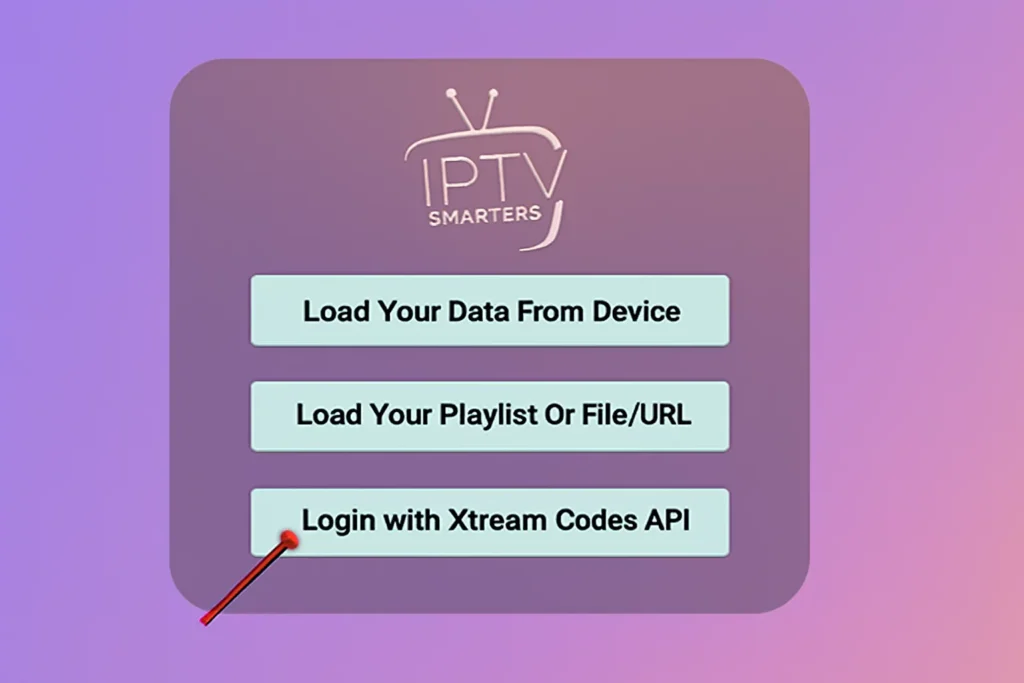
STEP 2:
In this step, in the first box, select any name you want, for example “Cosmic TV”. In the second and third boxes, enter the Username, Password, and the server URL that we sent you via WhatsApp, Email, or Chat.
Now click on “ADD USER” to proceed to the next section.
STEP 3:
Wait some seconds.
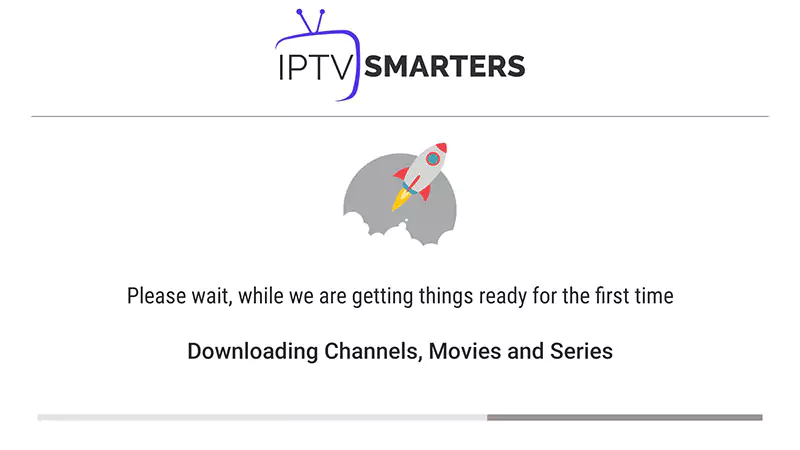
STEP 4:
Now click on the “Live TV” icon as depicted in the image via a red arrow.
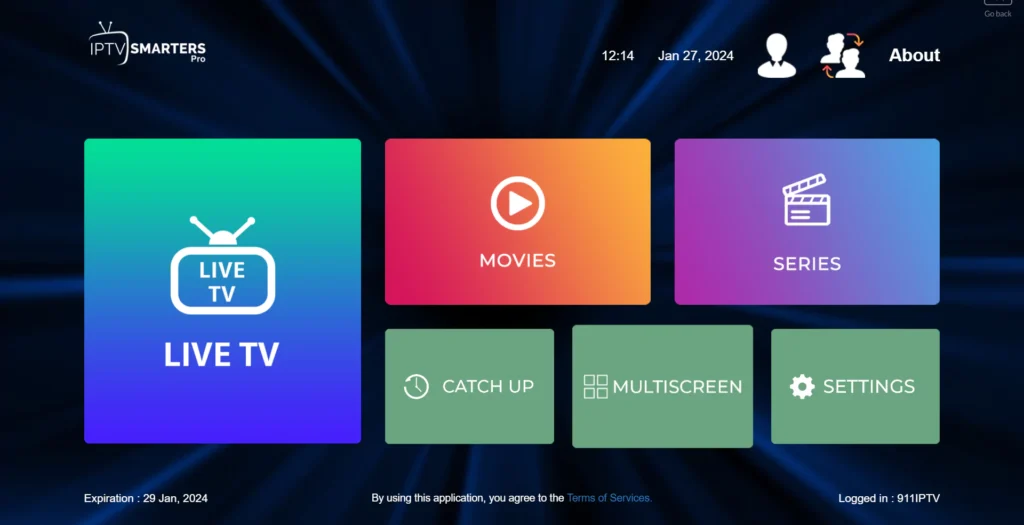
STEP 5:
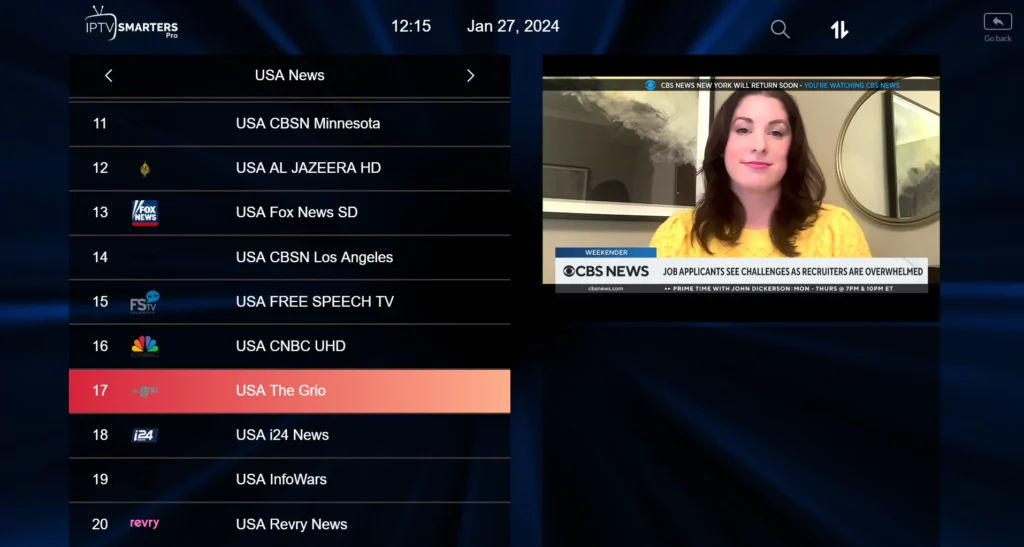
Now you must select the channel group that you want to watch and proceed to the next section.
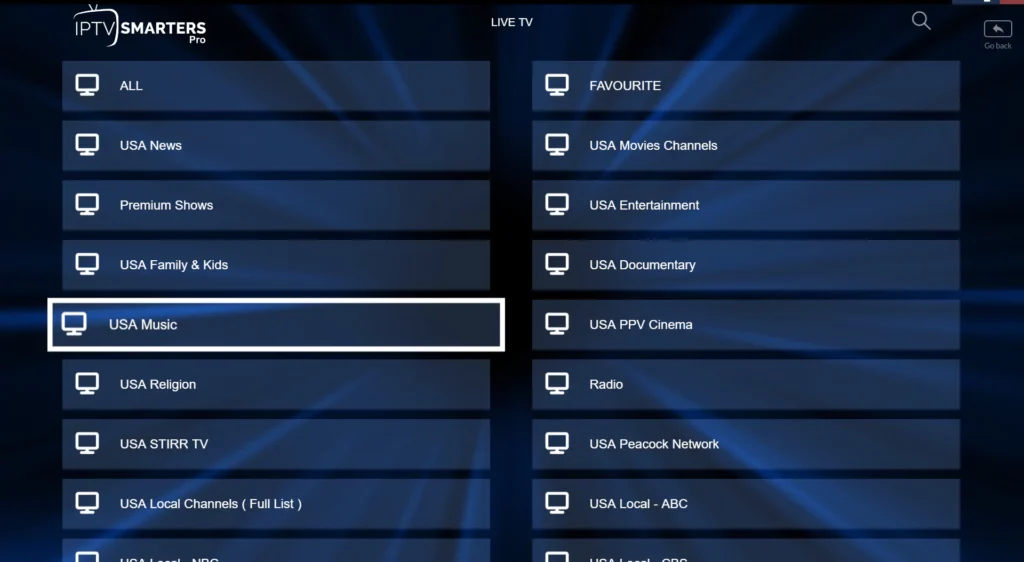
SETP 6:
Now you must click on the channel name and then double click on the small screen to turn into the full screen as the final step.
STEP 7:
Setup IPTV Smarters via Playlist
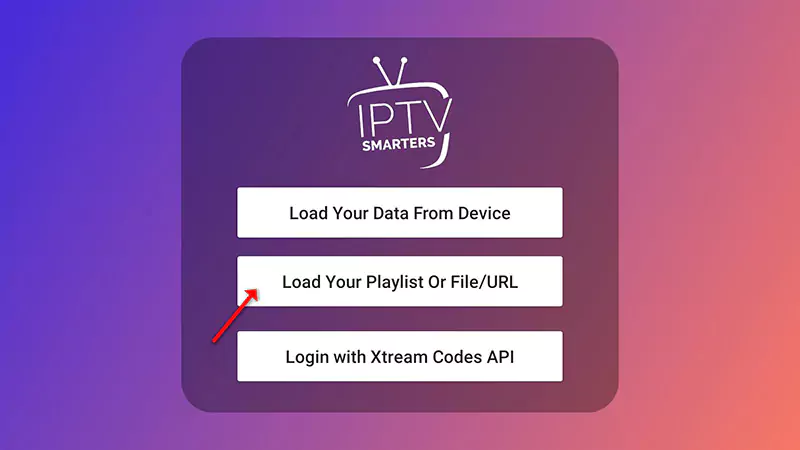
If you don’t have an Xtream Code API, you can use an M3U URL and choose to Load Your Playlist or File URL.
STEP 1:
Open the app once downloaded and click on “Add user” then click on “Login with Playlist“.
STEP 2:
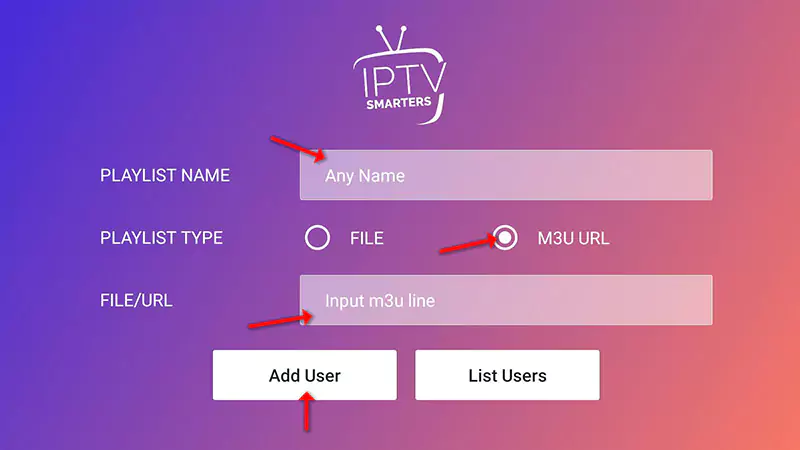
In this step, in the first box, select any name you want for example “IPTV Playlist”.
Select “M3U URL” and enter the M3U URL that we sent you via Whatsapp or Email or Chat.
STEP 4:
Now click on the “Live TV” icon, select channels group then the channel you want to watch. And enjoy your favourite streaming channel.
Install IPTV on your Samsung & LG Smart TV
For Samsung Smart TV
Step 1 : Press the Smart Hub button from your remote.
Step 2 : Search for the Smarters Pro to install.
Step 3 : Log in the Application with your subscription details i.e. Username, Password, Portal URL.
For LG Smart TV
Step 1 : Press the Home button on the remote & Go to LG Content Store.
Step 2 : Search for the Smarters Pro to install.
Step 3 : Log in the Application with your subscription details i.e. Username, Password, Portal URL.
Great! You now have the IPTV Smarters app
When you run the IPTV Smarters app for the first time, Terms of Use will be the first window. Scroll down and click Accept.
You can add IPTV channels to IPTV Smarters in two ways:
- Setup via Xtream Codes API.
- Setup via Playlist.
Setup IPTV Smarters via Xtream Codes API
We recommend setup via Xtream Codes API because you will have the Catchup feature this way and also do not need to add any EPG URL (it will load automatically).
STEP 1:
Open the app once downloaded and click on “Add user” then click on “Login with Xtream Codes API“.
We recommend setup via Xtream Codes API because you will have the Catchup feature this way and also do not need to add any EPG URL (it will load automatically).
STEP 2:
In this step, in the first box, select any name you want, for example “Cosmic TV”. In the second and third boxes, enter the Username, Password, and the server URL that we sent you via WhatsApp, Email, or Chat.
Now click on “ADD USER” to proceed to the next section.
STEP 3:
Wait some seconds.
STEP 4:
Now click on the “Live TV” icon as depicted in the image via a red arrow.
STEP 5:
Now you must select the channel group that you want to watch and proceed to the next section.
SETP 6:
Now you must click on the channel name and then double click on the small screen to turn into the full screen as the final step.
STEP 7:
Setup IPTV Smarters via Playlist
If you don’t have an Xtream Code API, you can use an M3U URL and choose to Load Your Playlist or File URL.
STEP 1:
Open the app once downloaded and click on “Add user” then click on “Login with Playlist“.
STEP 2:
In this step, in the first box, select any name you want for example “IPTV Playlist”.
Select “M3U URL” and enter the M3U URL that we sent you via Whatsapp or Email or Chat.
STEP 4:
Now click on the “Live TV” icon, select channels group then the channel you want to watch.
Install IPTV on your Formuler Box/Device
FormulerZ boxes are one of the best devices for watching IPTV.
The most important advantage of FormulerZ boxes is supporting both MAC base Portal System and M3U base Playlist.
FormulerZ8 is the last version of Formuler boxes with MYTV Online 2 application which support 4K Ultra HD streaming,
In this tutorial, we are going to show you how to bring IPTV channels to your MYTV Online 2 on FormulerZ8.
This setup guide can be used for all models of Formuler devices/boxes:
STEP 1:
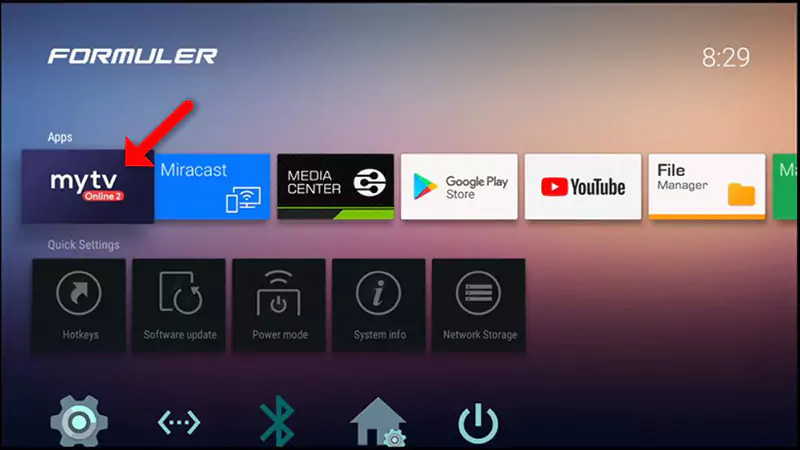
Open the exclusive application for watching IPTV in Formuler boxes “MYTV Online 2”.
If you don’t have this application on your device you can download it from the Google Play store.
STEP 2:
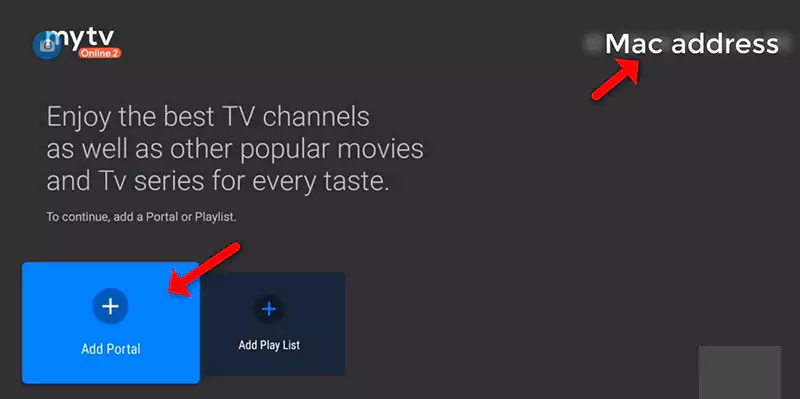
You can see the box’s MAC in the top right of this page.
Please note, this MAC address must be given to your IPTV provider.
Here you can see the two options, select “Add Portal” to set the device as a MAC based device like MAG boxes.
STEP 3:
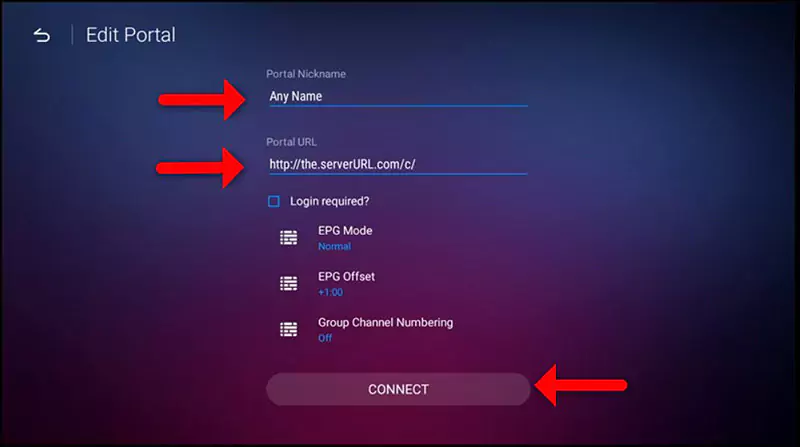
Enter Portal Nickname (Example: MYIPTV).
Enter IPTV Portal URL you get from your IPTV provider and click on “CONNECT”. You can ask for a portal URL from your IPTV service provider.
Install IPTV on your Window/Mac device
Step 1 : For Windows/MAC: https://www.iptvsmarters.com/smarters.apk And Install the Application IPTV Smarters Pro
For IOS: https://apps.apple.com/in/app/smarters-player-lite/id1628995509 And Install the Application IPTV Smarters Pro
Great! You now have the IPTV Smarters app
Step 2: Open the app once downloaded and Enter the login details.
You can add IPTV channels to IPTV Smarters in two ways:
- Setup via Xtream Codes API.
- Setup via Playlist.
Setup IPTV Smarters via Xtream Codes API
We recommend setup via Xtream Codes API because you will have the Catchup feature this way and also do not need to add any EPG URL (it will load automatically).
STEP 1:
Open the app once downloaded and click on “Add user” then click on “Login with Xtream Codes API“.
STEP 2:
In this step, in the first box, select any name you want, for example “Cosmic TV”. In the second and third boxes, enter the Username, Password, and the server URL that we sent you via WhatsApp, Email, or Chat.
Now click on “ADD USER” to proceed to the next section.
STEP 3:
Wait some seconds.
STEP 4:
Now click on the “Live TV” icon as depicted in the image via a red arrow.
STEP 5:
Now you must select the channel group that you want to watch and proceed to the next section.
SETP 6:
Now you must click on the channel name and then double click on the small screen to turn into the full screen as the final step.
STEP 7:
Setup IPTV Smarters via Playlist
If you don’t have an Xtream Code API, you can use an M3U URL and choose to Load Your Playlist or File URL.
STEP 1:
Open the app once downloaded and click on “Add user” then click on “Login with Playlist“.
STEP 2:
In this step, in the first box, select any name you want for example “IPTV Playlist”.
Select “M3U URL” and enter the M3U URL that we sent you via Whatsapp or Email or Chat.
STEP 4:
Now click on the “Live TV” icon, select channels group then the channel you want to watch. And enjoy your favourite streaming channel.